
Call us now :07317168935
 Send Inquiry
 Send Inquiry
TP-Link Wireless Router
Price 90 INR/ Piece
MOQ : 10 Pieces
TP-Link Wireless Router Specification
- Frequency
- 2.4 GHz
- IP Routing
- Supported with static and dynamic routing
- Power Supply
- 9V/0.6A DC
- Dimension (L*W*H)
- 182 x 129 x 35 mm
- Device Type
- Wireless Router
- Port
- 4 x LAN, 1 x WAN
- Features
- Easy setup, wireless encryption, bandwidth control
- Network Device
- TP-Link Wireless Router
- Remote Control
- Yes
- Power Consumption
- 6 Watts (max)
- Weight
- 220 g
- Interface Type
- Ethernet, Wireless IEEE 802.11b/g/n
- Operating Temperature
- 0C ~ 40C
- Usage & Applications
- Home and small office networking
- Antenna
- 2 x 5dBi Fixed Antennas
- Number Of Ports/Pins
- 5 Ports (4 LAN + 1 WAN)
- Connectivity Type
- WiFi, Ethernet
- Cable Length
- 1.5 Meter (included)
- Management
- Web-based configuration, remote firmware upgrade
- Security
- WEP, WPA/WPA2, WPA-PSK/WPA2-PSK
- Mounting
- Desktop or wall-mountable
- Wireless Standards
- IEEE 802.11b/g/n
- Firewall
- SPI and NAT
- Signal Coverage
- Up to 300 square meters (ideal conditions)
- LED Indicator
- Power, System, LAN, WAN, WLAN
- Data Transfer Rate
- Up to 300 Mbps
- QoS
- Quality of Service supported
TP-Link Wireless Router Trade Information
- Minimum Order Quantity
- 10 Pieces
- Supply Ability
- 5000 Pieces Per Month
- Delivery Time
- 2-4 Days
About TP-Link Wireless Router
Acclaimed to be the best in the industry, we are one of the superb suppliers and traders of TP-Link Wireless Router. This device help delivers high speed and has high durability. It is duly tested by our skilled quality on diverse quality parameters. Moreover, TP-Link Wireless Router is vastly used in homes, offices, schools, hotels etc for data services.
Specification
| Connectivity Type | Wireless or Wi-Fi |
| Item Weight | 522 gm |
| Dimensions | 16.1 x 24.3 x 3.3 cm |
| Brand | TP Link |
| Batteries Required | Yes |
| LAN Ports | 4 |
Seamless Internet for Every Corner
Thanks to its dual 5dBi fixed antennas and coverage of up to 300 square meters, the TP-Link Wireless Router is ideal for covering medium-sized homes or office spaces. Ensure uninterrupted connectivity whether youre working, streaming, or gaming, with strong signals even through walls.
Effortless Security and Management
The router supports robust security protocols including WEP, WPA/WPA2, and WPA-PSK/WPA2-PSK to safeguard your wireless network. With its web-based configuration interface, users can easily set up, monitor, and update their router remotely, ensuring complete control and peace of mind.
Flexible Installation and Device Support
Designed for convenience, this router can be either desktop-placed or wall-mounted depending on your space. It comes with a 1.5-meter cable and provides ample connectivity with four LAN and one WAN port, making it suitable for various wired and wireless devices.
FAQs of TP-Link Wireless Router:
Q: How do I set up the TP-Link Wireless Router for the first time?
A: Begin by connecting the router to your modem using the included Ethernet cable via the WAN port. Power on the device using the 9V/0.6A DC adapter. Then, access the web-based configuration platform through your browser (usually by entering the IP address provided in the manual), where you can follow guided steps for setting up your Internet connection and Wi-Fi settings.Q: What wireless standards and speeds does this router support?
A: This TP-Link Wireless Router complies with IEEE 802.11b/g/n standards and offers wireless speeds up to 300 Mbps on the 2.4 GHz frequency band, making it suitable for daily online tasks such as browsing, streaming, and file transfers within a home or small office environment.Q: When and how should I use the Quality of Service (QoS) feature?
A: Quality of Service (QoS) should be enabled when you wish to prioritize certain types of network traffic (like video calls or gaming) to ensure stable performance. This feature can be configured via the routers web management interface under QoS settings, allowing you to allocate more bandwidth to critical devices or applications.Q: Where can this router be installed for optimal coverage?
A: You can place the router on a desktop or mount it on a wall, preferably in a central location within your home or office. This maximizes the coverage area (up to 300 square meters under ideal conditions), helping to avoid dead zones and maintain a strong wireless signal throughout the space.Q: What process is involved in securing my wireless network with this router?
A: After logging into the web-based configuration page, navigate to the wireless security section, where you can enable and configure encryption methods such as WPA2. Make sure to set a strong password for your Wi-Fi network to help protect it from unauthorized access.Q: What are the benefits of using the remote firmware upgrade feature?
A: The remote firmware upgrade feature allows you to update the routers operating software easily from any computer connected to the network. This ensures your device receives the latest performance enhancements, security patches, and new features without requiring technical expertise.Q: How can I utilize the bandwidth control function for better network management?
A: The bandwidth control function enables you to set limits on the upload and download speeds for individual devices connected to the network. Access this feature in the web management interface under bandwidth control settings, which is particularly useful for preventing any single user or application from consuming excessive bandwidth.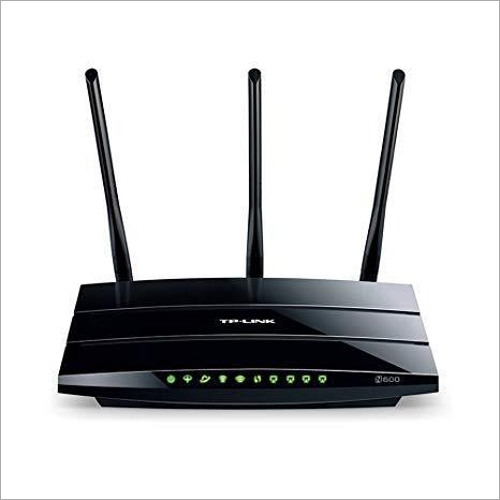
Tell us about your requirement

Price:
Quantity
Select Unit
- 50
- 100
- 200
- 250
- 500
- 1000+
Additional detail
Mobile number
Email

More Products in Networking Devices Category
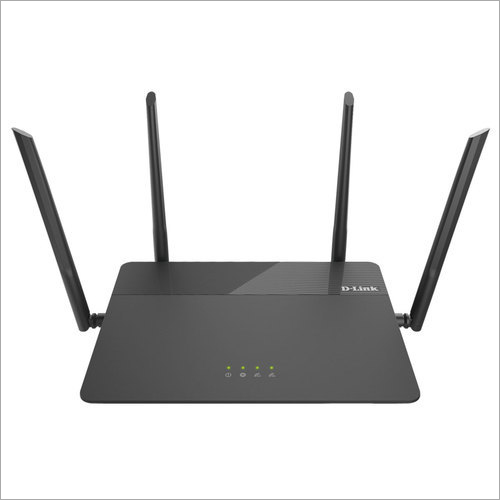
D-Link Wi-Fi Router
Price 90 INR / Piece
Minimum Order Quantity : 10 Pieces
Frequency : 2.4 GHz
Dimension (L*W*H) : 198 mm x 148 mm x 36 mm
Device Type : Wireless Router
Port : 4 x 10/100Mbps LAN, 1 x 10/100Mbps WAN
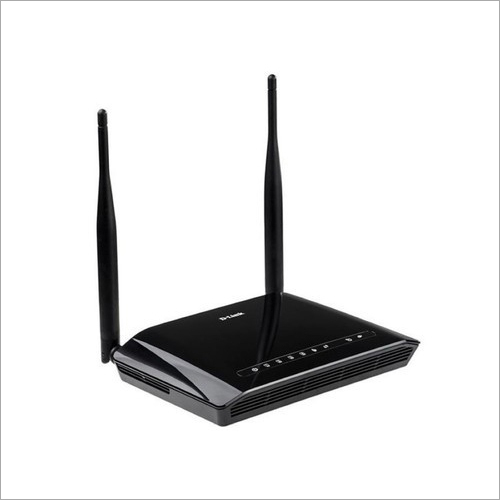
D-Link Modem Router
Price 90 INR / Piece
Minimum Order Quantity : 10 Pieces
Frequency : 2.4GHz
Dimension (L*W*H) : 180 mm x 125 mm x 32 mm
Device Type : ADSL2+ Wireless Modem Router
Port : 1 x RJ11 (ADSL), 4 x RJ45 (LAN), 1 x RJ45 (WAN), 1 x Power Port
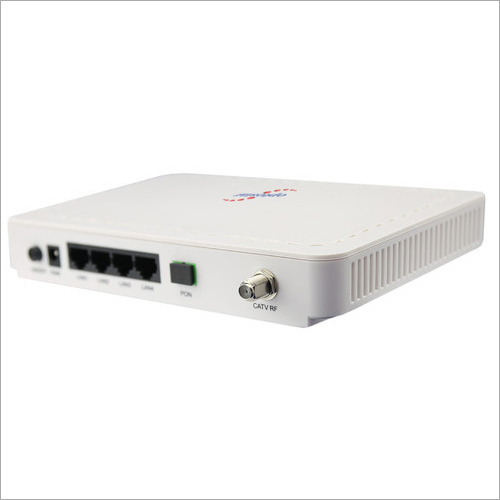
Optical Network Unit
Price 90 INR / Piece
Minimum Order Quantity : 10 Pieces
Frequency : 2.488Gbps Downstream / 1.244Gbps Upstream
Dimension (L*W*H) : 120 mm x 85 mm x 30 mm
Device Type : FTTH ONU (Fiber to The Home)
Port : 1 x Gigabit Ethernet Port (RJ45), 1 x Fiber Optic Port
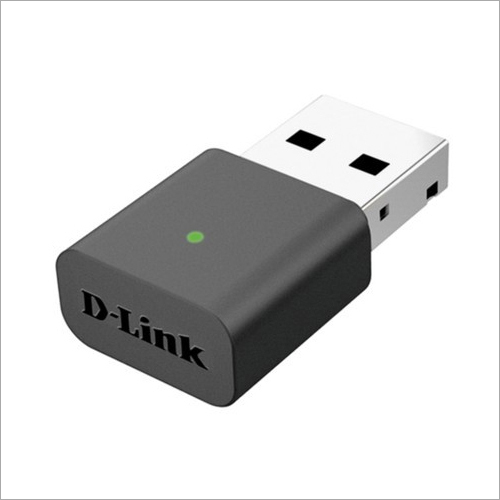
Dlink Wifi USB Adapter
Price 90 INR / Piece
Minimum Order Quantity : 10 Pieces
Frequency : 2.4 GHz
Dimension (L*W*H) : 37 x 18 x 8 mm (approx)
Device Type : USB Wireless Adapter
Port : USB 2.0

We Deal Only in West Bengal and Eastern Region of India

 Send Inquiry
Our Products

5, Princep Street, Opposite - Hotel Minerva, Ground Floor, Kolkata - 700072, West Bengal, India

Mr Vikash Minda
(Owner)
Mobile :07317168935
 Send Inquiry
 Send SMS
 Call Me Free
Developed and Managed by Infocom Network Private Limited.
